
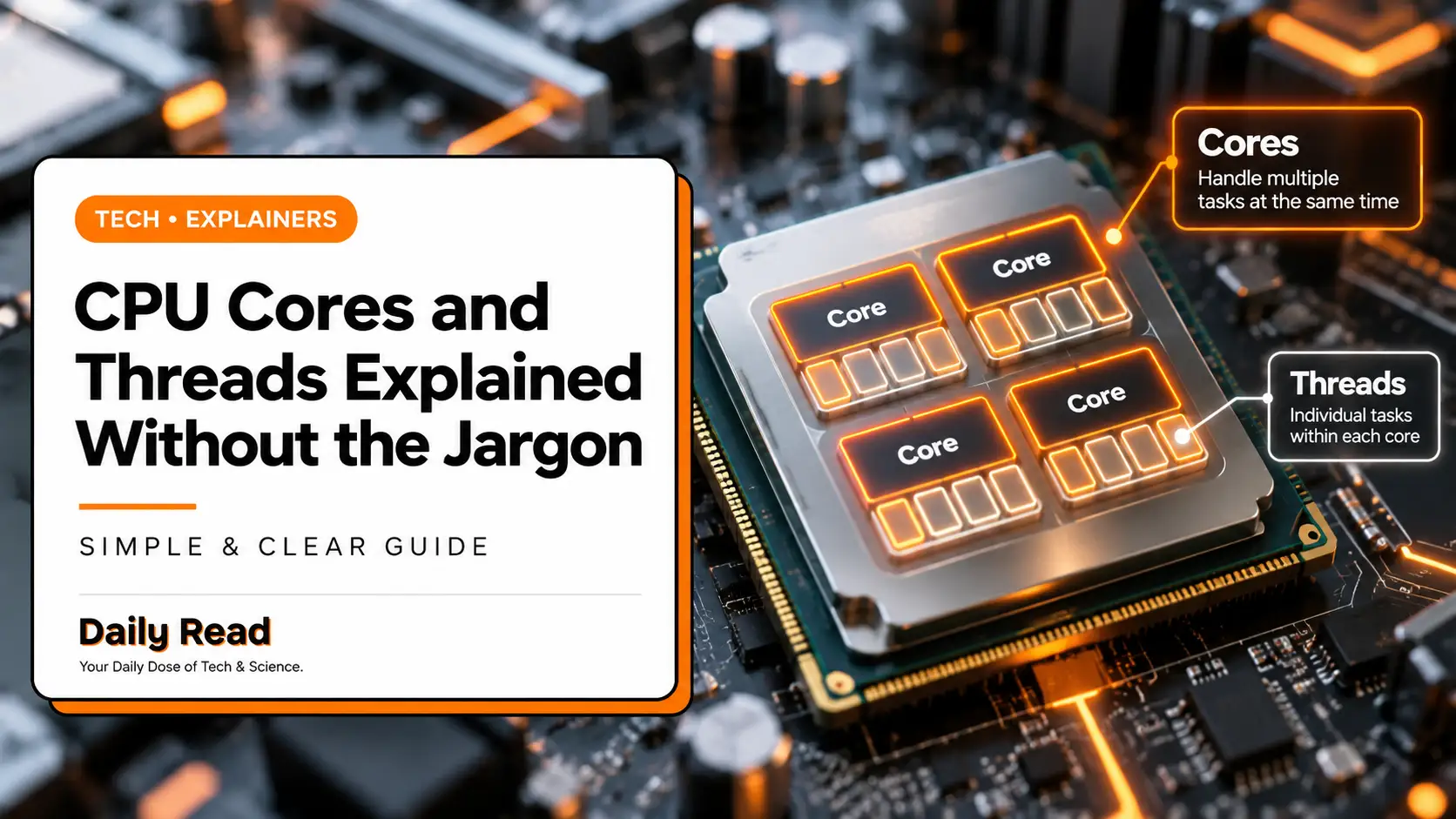
Learn what CPU cores and threads mean, why logical processors are not extra physical cores, and how to read specifications in context.
A CPU core is a physical processing unit within a processor. A thread is a sequence of instructions that software can schedule for execution. Some processors support more than one hardware thread per core, so the operating system may show more logical processors than physical cores.
Those numbers are useful, but they do not tell the whole performance story. The application, processor design, power limits, cooling, and other parts of the computer influence what you experience.
In this article
Physical cores and logical processors
Think of a physical core as a worker with a set of tools. Supporting multiple hardware threads can help that worker handle instruction streams more efficiently, but it does not create another identical worker with a completely separate toolset.
Intel’s Hyper-Threading is one implementation of simultaneous multithreading. Support varies by processor. Do not assume that a particular core count always implies twice as many threads, especially when comparing different designs or generations.
Read the specification for the exact model. A product family name alone is not enough to identify core layout, thread support, or other features.
More cores help when the work can be divided
Some tasks can distribute substantial work across several cores. Others spend important parts of their time waiting on one instruction stream, a data transfer, or another resource. The software’s design matters.
For a practical comparison, imagine two jobs. One is preparing several independent files. Another requires completing one dependent step before the next can begin. Adding workers has a different effect in each case.
This is why “more cores” should be followed by “for which workload?” A useful purchase decision connects the specification to the applications you run rather than treating it as an isolated score.
Clock speed also needs context
Clock speed is another processor specification, but comparing frequency alone across different designs is incomplete. A GHz number does not tell you how much useful work each processor performs in a particular application.
When reading a product page, distinguish the advertised specifications from sustained behavior in a complete device. A laptop’s design and operating conditions can matter, not just the processor’s name.
For your own work, make a list of the applications that consume the most time. Look for relevant performance evidence and compatible system requirements. You will learn more from a test of your kind of task than from a generic ranking with no explanation.
Hybrid designs introduce another distinction
Some modern processors combine different kinds of cores. Intel describes Performance-cores and Efficient-cores in supported hybrid designs. The operating system and scheduling support help assign work among those resources.
That means the total core count may combine cores with different roles and capabilities. Do not assume every listed core is interchangeable. Check the breakdown where the manufacturer provides it.
For a beginner, the useful lesson is simple: read the structure of the specification. A label like “12 cores” is the beginning of the comparison, not its conclusion.
Check what your computer actually has
On Windows, Task Manager’s Performance section can show CPU information, including cores and logical processors. Intel’s support instructions describe this route for checking the figures.
Record the exact processor model as well. If you are troubleshooting an application, collect its version and the rest of your system specifications. This gives a support person enough context to answer a specific question.
Do not change system settings merely because you see unused capacity during a light task. A computer does not need to keep every resource fully occupied all the time. Focus on whether your actual work completes acceptably.
Use a task-based comparison
Choose a representative job you perform often: export a project, compile an application, or work with a demanding spreadsheet. Note the time required and whether other tasks remain responsive.
When comparing another computer, use a similar workload and explain any differences in software or conditions. You are trying to estimate the improvement you would actually notice, not prove that one number is always superior.
Also consider the rest of the system. Memory capacity, storage, graphics requirements, and cooling can change the experience. A processor upgrade that leaves the real limitation untouched may disappoint you.
Questions readers often ask
Are eight threads the same as eight physical cores?
No. Logical processors and physical cores are different quantities. Check the exact processor’s core and thread specification.
Is a higher core count always better?
It depends on the workload and complete system. Compare the performance, compatibility, and cost that matter for your tasks rather than relying on core count alone.

Najaf Sial is the Owner and Lead Writer at WormZone.in, covering the latest updates across technology, science, gadgets, cybersecurity, and global trends. With a passion for digital innovation and clear, factual reporting, Farhat brings readers insightful and trustworthy news from around the world.